- Route 53 Rundown
- Posts
- Fully Understanding EC2 Cost Breakdown & How to Reduce It
Fully Understanding EC2 Cost Breakdown & How to Reduce It

Route 53 Rundown
July 20, 2025
You may be wondering, why are my EC2 cost so high?
Overview
For background, I work with companies who spend millions or hundreds of thousands annually on Amazon Web Services (AWS), and help them improve cost efficiency on AWS. Over the course of time, I have found many hidden secrets that AWS doesn’t advertise to everyone, and so I decided to share it here in the form of a short, sweet, yet hopefully impactful newsletter. If you ever have questions about AWS, feel free to reach out by replying to this email.
In this post, we will be discussing how to reduce your EC2. For those not familiar, EC2 is the single largest AWS service by revenue!
There are many ways to reduce your Amazon EC2 Spend. Some of the most common examples are… (In order from to easiest to most difficult)
1) They had a bunch of idle instances that were getting charged even though they weren’t being used.
2) Paying the on-demand rate instead of a reserved price from an EC2 instance. Perhaps an old RI expired.
3) Rightsize your EC2 instances to make sure they are the cheapest
4) You are not using spot instances for some workloads, which can reduce your cost by using available AWS compute.
5) You used a more expensive EC2 family than you needed.
Concrete Steps to Reducing Costs
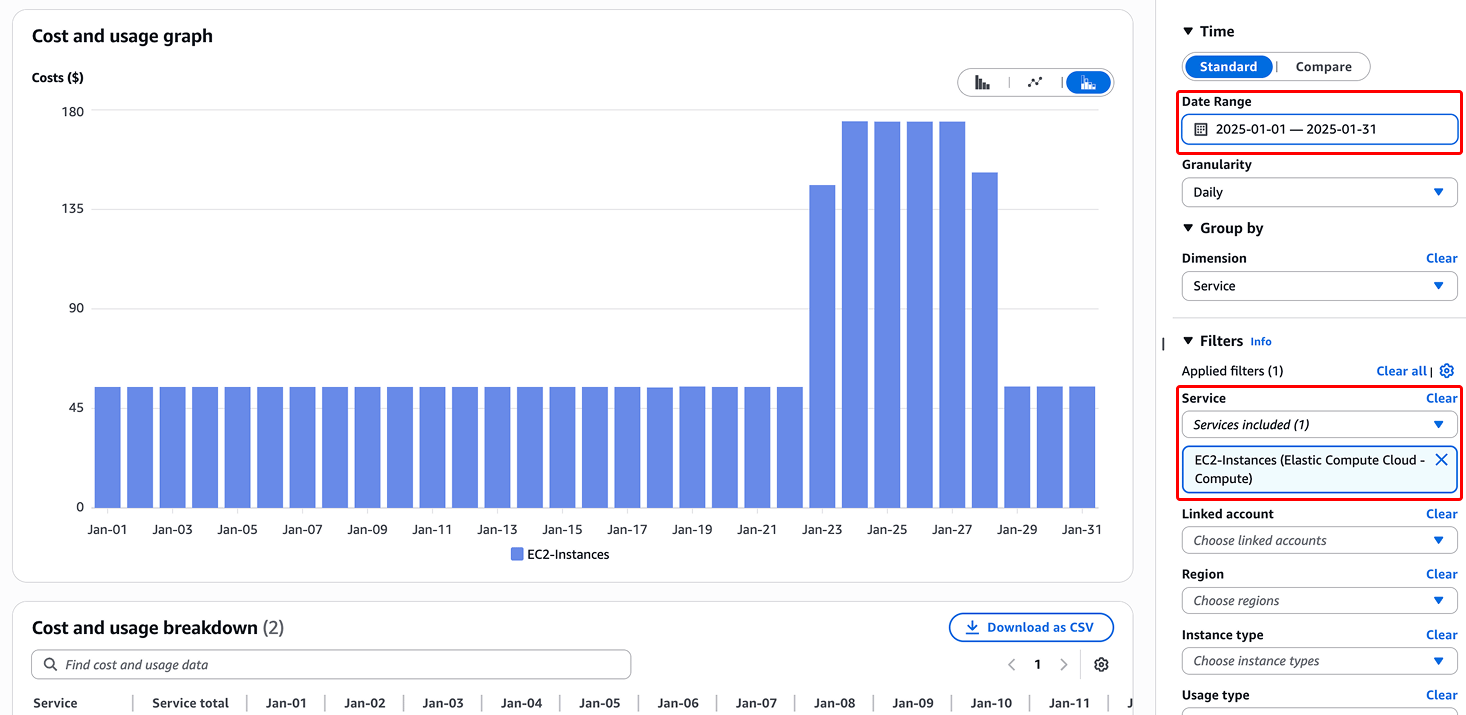
First, let’s start with the basics. It is important to understand WHERE your EC2 costs are coming from. , we mean as defined by AWS Cost Explorer. So when you go to Cost Explorer, select the service as “EC2-Instances (Elastic Compute Cloud - Compute)", on the right hand menu under Filters.
Next, you’ll once to split up the spend by instance type, which can be seen here.
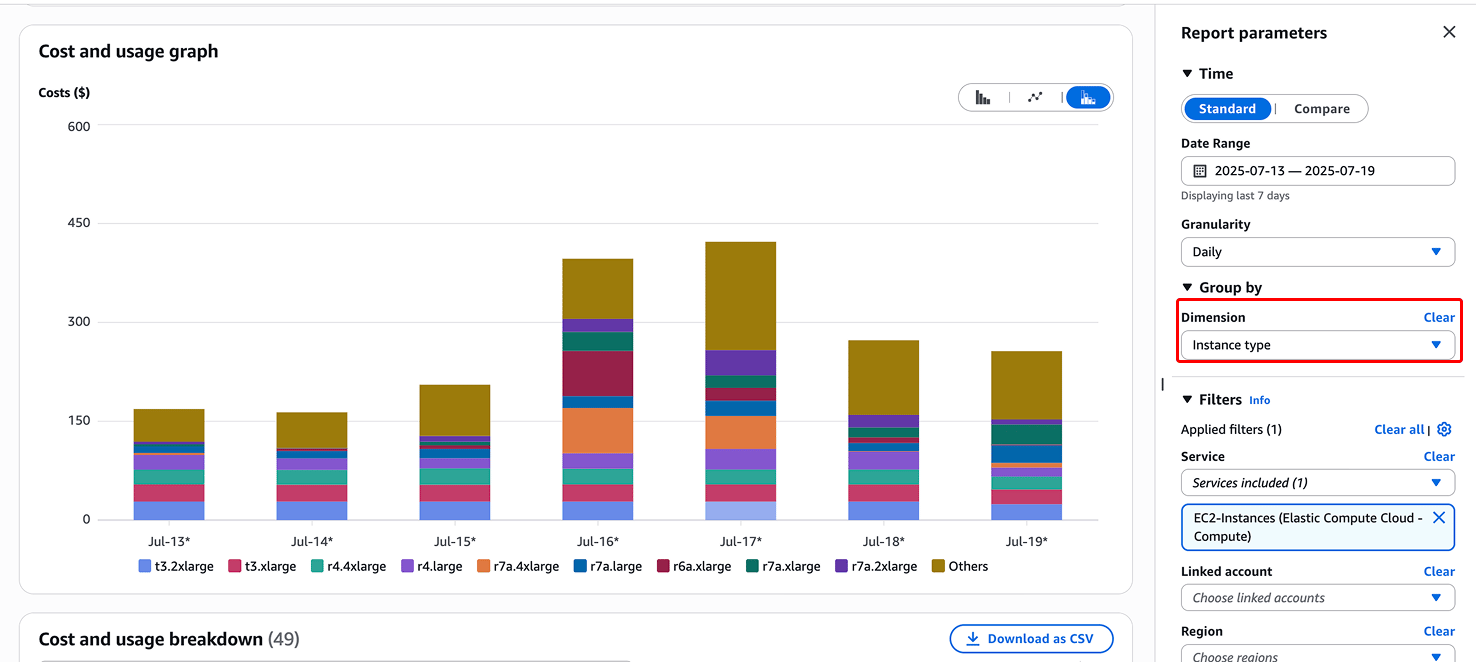
This tells us a good amount of information about where your EC2 costs are going. You can also filter by Account and Region, and that may help you identify where your EC2 costs are going.
The first question to ask yourself if: Are there any EC2 instances that you don’t really use? If so, it’s important to stop those instances so you stop getting charged.
So when you see on AWS Cost Explorer that you are [usually] paying $150 per day on EC2. It’s super critical to figure out where the $150 is going. One other place you should look is to understand the split between On Demand, Reserved and Spot.
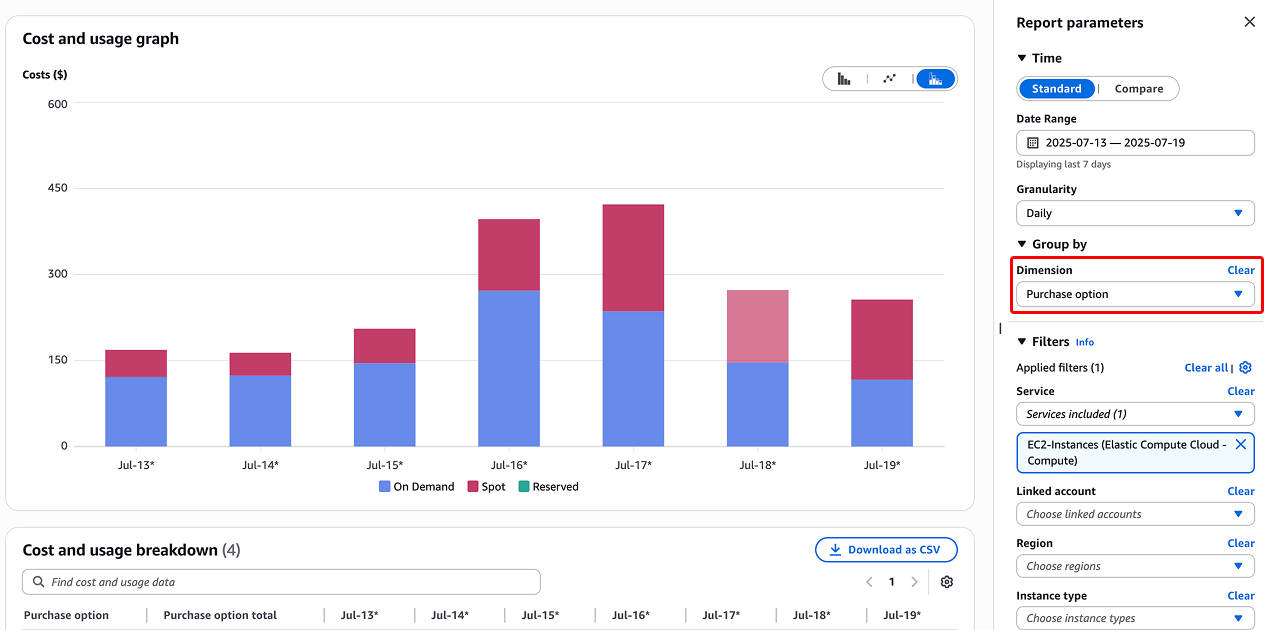
Here is what each of those descriptions mean:
On Demand: Allow users to pay for compute capacity by the hour or second with no long-term commitments. This pricing model offers flexibility for applications with unpredictable workloads.
Spot: Bid on unused AWS capacity at significantly reduced costs, sometimes up to 90% less than on-demand prices. However, these instances can be interrupted with short notice (two minute warning), making them suitable for fault-tolerant, flexible workloads.
Reserved: Significant cost savings, up to 75% compared to on-demand pricing, in exchange for a one- or three-year commitment. They are ideal for predictable, steady-state workloads, offering capacity reservations and lower rates.
Reserved Pricing
In this case, it looks like there is no use of reserved pricing, which is why it may make sense to look into reserved instances or savings plans. Go to the AWS Billing and Management Console, click on the left hand side, and under Reservations, click on Coverage Report.
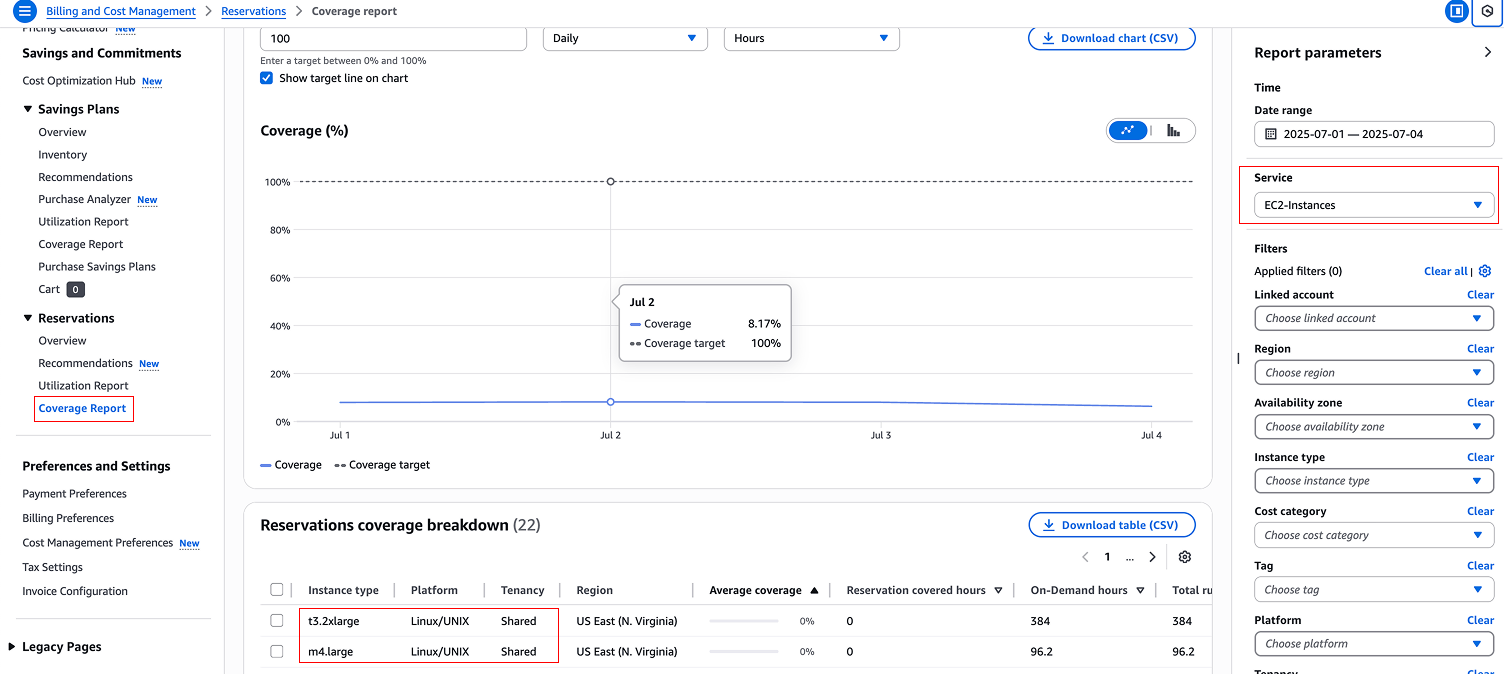
We can see 22 instance types, with most of them having an average coverage of 0%. Depending on the business, it usually makes sense to aim for anywhere between 75% to 95% depending on your infrastructure stability.
This means we need to figure out which EC2 instances do we plan to use for the next 12 or 36 months. Once we create that list, we’ll buy either reserve instances or savings plans to cover them, so we can pay a lower rate by committing to AWS to use an instance for a long period of time.
Once your done with figuring out which instances you are using, and which ones can be reserved, it makes sense to rightsize your AWS instances. Here’s a very helpful blog article about rightsizing your instance.
As a quick and easy rule of thumb (not in all places), is if the EC2 cloudwatch CPU rates are never going above 50%, you may want to look into this deeper and consider changing the instance one or more sizes down. For example, if you have a large —> consider going to a medium. Or if you have an xlarge —> consider going to a large.
Shifting gears, one of the most undervalued ways of reducing computing costs is using spot instances. Spot is unused AWS capacity that may be kicked off at any time with only a two minute warning. That being said, depending on the region, you can find interruption rates being quite low. I write more in-depth about spot instances here:
How Spot Instances Can Ridiculously Lower Compute Costs
This is a helpful map to show the difference between regions on AWS and GCP.
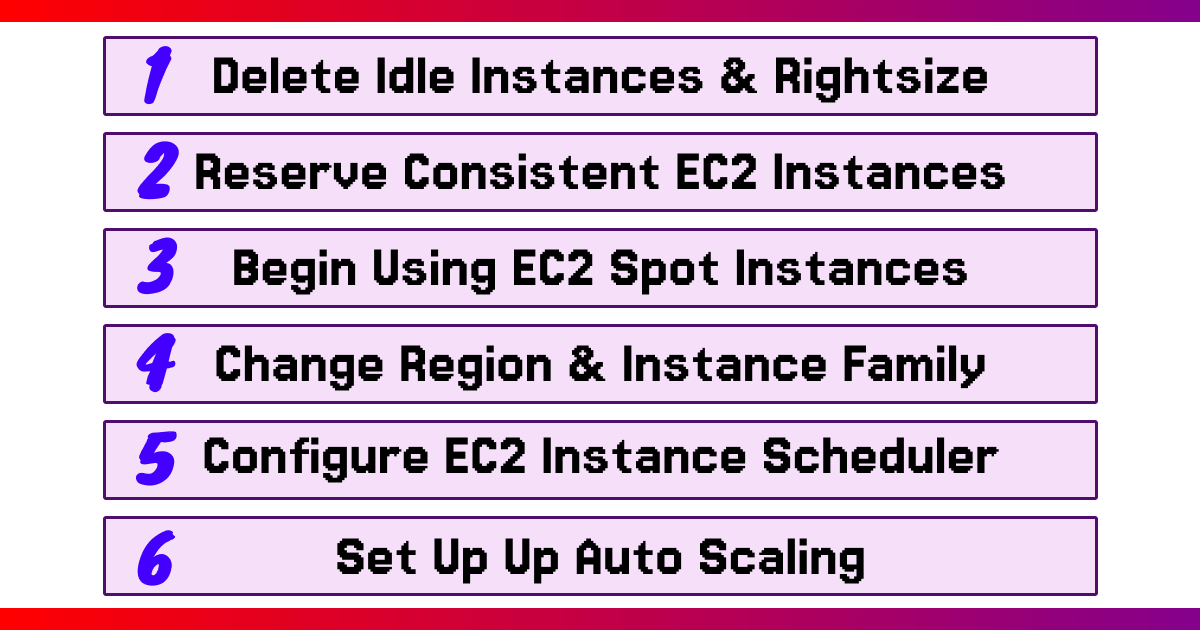
Here’s what we have covered thus far…
1/ Make sure your instances are rightsized (the smallest possible). The best way to investigate this is by going to each of your EC2 instances, and looking at the CloudWatch stats, mostly CPU.
2/ Delete instances you don’t use. It’s best practice to have a few different AWS accounts, and make sure each instance you are being charged in Cost Explorer is also being used.
3/ Reserve your instances that you plan to use for 12 or more months by using reserved instances or savings plans.
4/ If you are able to use spot instances, use them! They are AWS’s unused compute.
EC2 Instance Scheduler
There are a few other ways you can reduce your costs, including scheduling instances for some workloads. Instance Scheduler on AWS allows you to choose times and days of the week to turn on your instance. This means your instance [for some workloads] would not need to be on 24 hours, 7 days a week, but could instead turn on at 6am, and turn off at 11pm, or at least all but one. In this case, instead of a reserved instance, you could save money on the instance by just not using as much of it.
Here’s an AWS implementation guide on how to setup and automate starting and stopping AWS EC2 instances. This will allow you to reduce some EC2 instances from 24 hours to maybe 16 on a daily basis!
Setting Up Auto Scaling
Another effective way to optimize costs and ensure performance is by using AWS Auto Scaling for your EC2 instances. Auto Scaling automatically adjusts the number of EC2 instances based on demand, ensuring you have enough capacity during peak times while scaling down during low traffic to save costs.
This means your application can handle varying workloads efficiently without running unnecessary instances 24/7.With Auto Scaling, you can set policies to add or remove instances based on metrics like CPU usage, request counts, or custom CloudWatch metrics. For example, you could scale out by adding instances when CPU usage exceeds 70% and scale in when it drops below 30%, keeping costs low while maintaining performance.
Here’s a great guide to set up and configure Auto Scaling for EC2 instances. This will help you automate scaling to match demand, potentially reducing costs by running only the instances you need!
To Recap…
Thanks so much for taking the time to read this! Enjoy.
Yaddle out.